

Live Wedding Photo Slideshow: Show Guests' Photos at the Reception
How a live wedding photo slideshow works, what you need to show it on a TV or projector, and how to keep it guest-friendly with moderation.
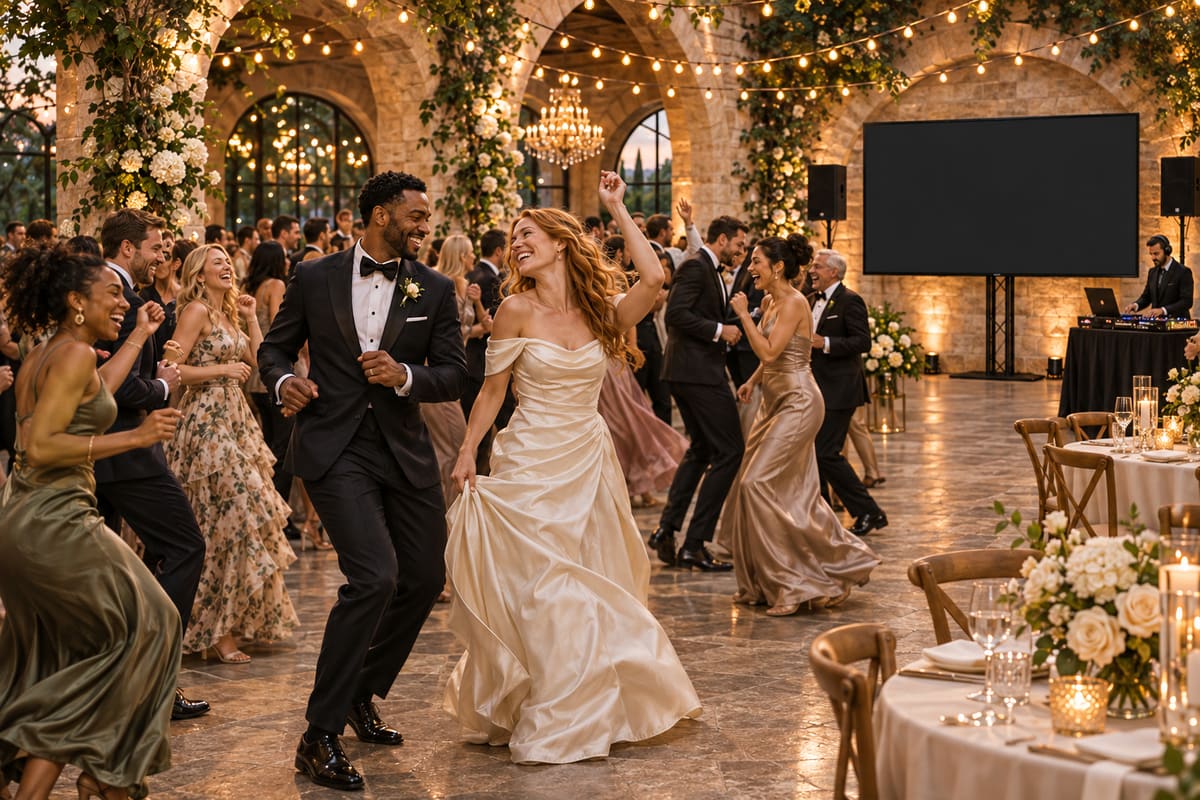
A live photo slideshow puts your guests' photos on a screen at the reception as they share them. People love seeing themselves up there, and it reminds everyone to share more.
Not the same as live-streaming. A live photo slideshow shows still photos and short videos that guests upload. Streaming the ceremony as live video to people at home is a different thing that needs a camera and a streaming service such as YouTube Live. IDoSnap.com can put a link to your stream on the guest page, but it doesn't do the streaming itself.
What you need
- A screen: a TV, a projector, or the DJ's display.
- A device to run it: a laptop connected by HDMI, or a smart TV or streaming stick with a web browser. Plug it in and turn off sleep and screen-saver settings.
- An internet connection for that device. Venue Wi-Fi or a phone hotspot. The guests' phones don't need to be on the same network.
How it works with IDoSnap.com
- Open your event's slideshow link (on your dashboard, "Slideshow for the DJ / TV") in the browser on the display.
- Click or tap once to start. It goes full screen. Videos (on paid plans) are off until you turn them on, and play muted unless you or the DJ unmute them.
- New photos join the show shortly after each successful upload (or after you approve them). You choose the order: a weighted shuffle that favors new and loved photos, random, in the order they were taken, or newest first. Each photo gets a slow pan.
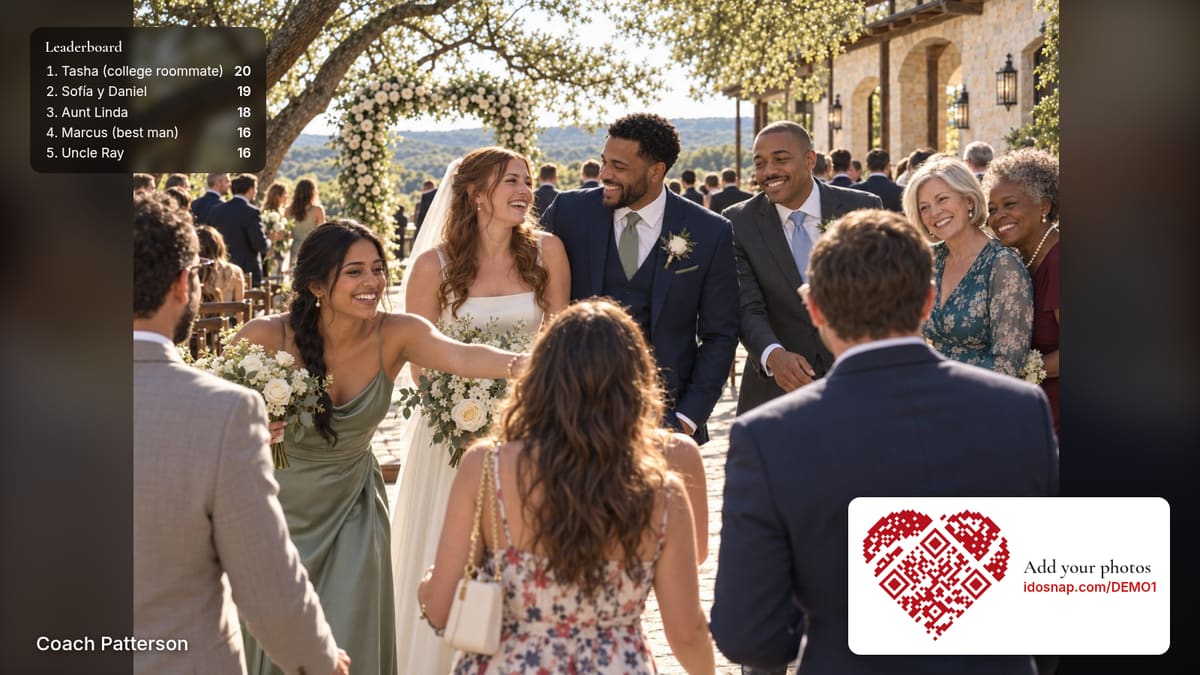
- Your QR code can stay in the corner so more guests join in; you choose whether and how often it shows.
Options include seconds per photo, captions and names, how often the QR code shows, and (on Essentials and up) a "still missing" shot list and a participation leaderboard on screen.
Keeping it guest-friendly
- Approve first if you'd like: set uploads to wait for your approval before they show on the screen or in the gallery.
- Hide anything instantly from the dashboard, from your phone, during the party.
- Explicit-content screening holds back likely explicit photos for review automatically.
- Ask a friend to watch it. Make a co-host of a bridesmaid or your planner so someone other than you keeps an eye on it.
Friends who couldn't come
Share the live photo slideshow with friends and family anywhere: they can watch along from home and, on plans with voice messages, leave a voice note that pops up on the screen.