

How to Collect Wedding Photos with a QR Code
Set up an event, print QR code signs, and get every guest's photos and videos in one place, with no app for guests to install.
Your guests take hundreds of photos at your wedding, and most of them never leave their phones. A QR code on each table gives everyone one quick way to send you what they took, in full quality, without downloading an app or joining a shared album.
1. Create one event for the whole wedding
Create your wedding as one event, with your names, the date and your time zone. You use one QR code and a short link (like test.idosnap.com/DEMO1 for our sample wedding) that you can also say out loud or put in your group chat.
2. Add galleries for the parts of the day
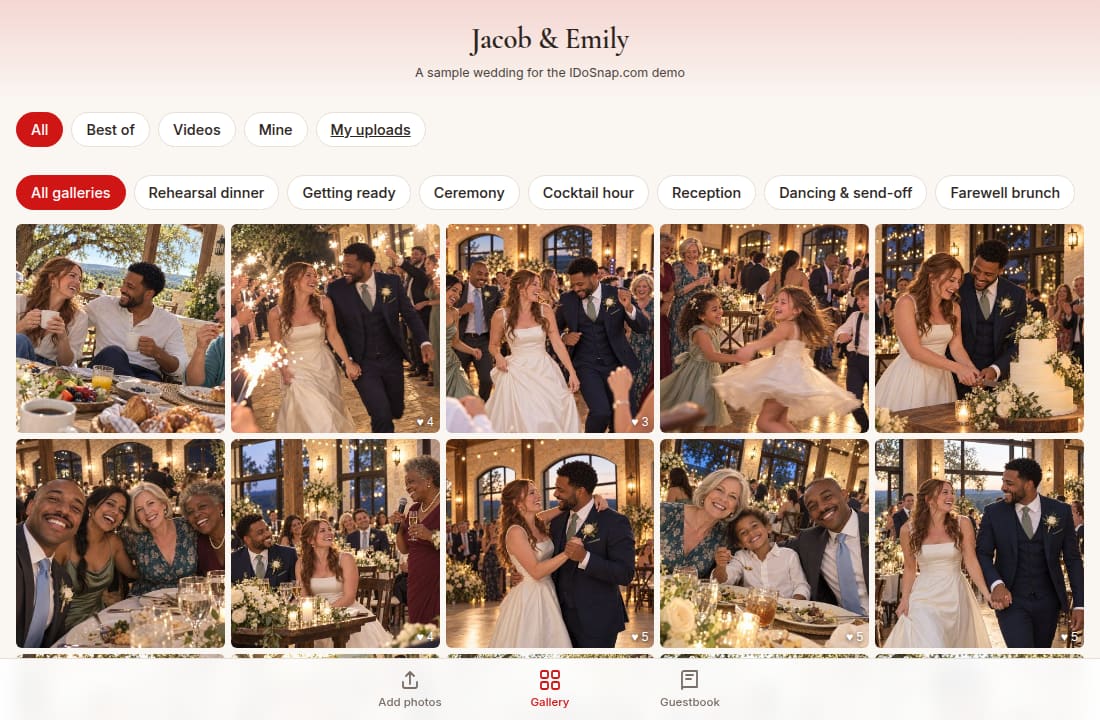
Give each part of the celebration its own gallery, such as Rehearsal Dinner, Ceremony, Reception or Farewell Brunch, with the time it starts. IDoSnap.com sorts each photo into the right gallery based on when it was taken, and guests use the same QR code all weekend. Free includes 3 galleries; paid plans include 5, 10 or unlimited.
3. Print signs and put them where people pause
From your event's "QR & signs" page, print a welcome poster, folded table tents, 4×6 table cards or small cards. Good places: every guest table, the bar, the guestbook table, and the entrance. Print at 100% scale and test-scan one before you print the rest. Our sign guide covers sizes and placement.
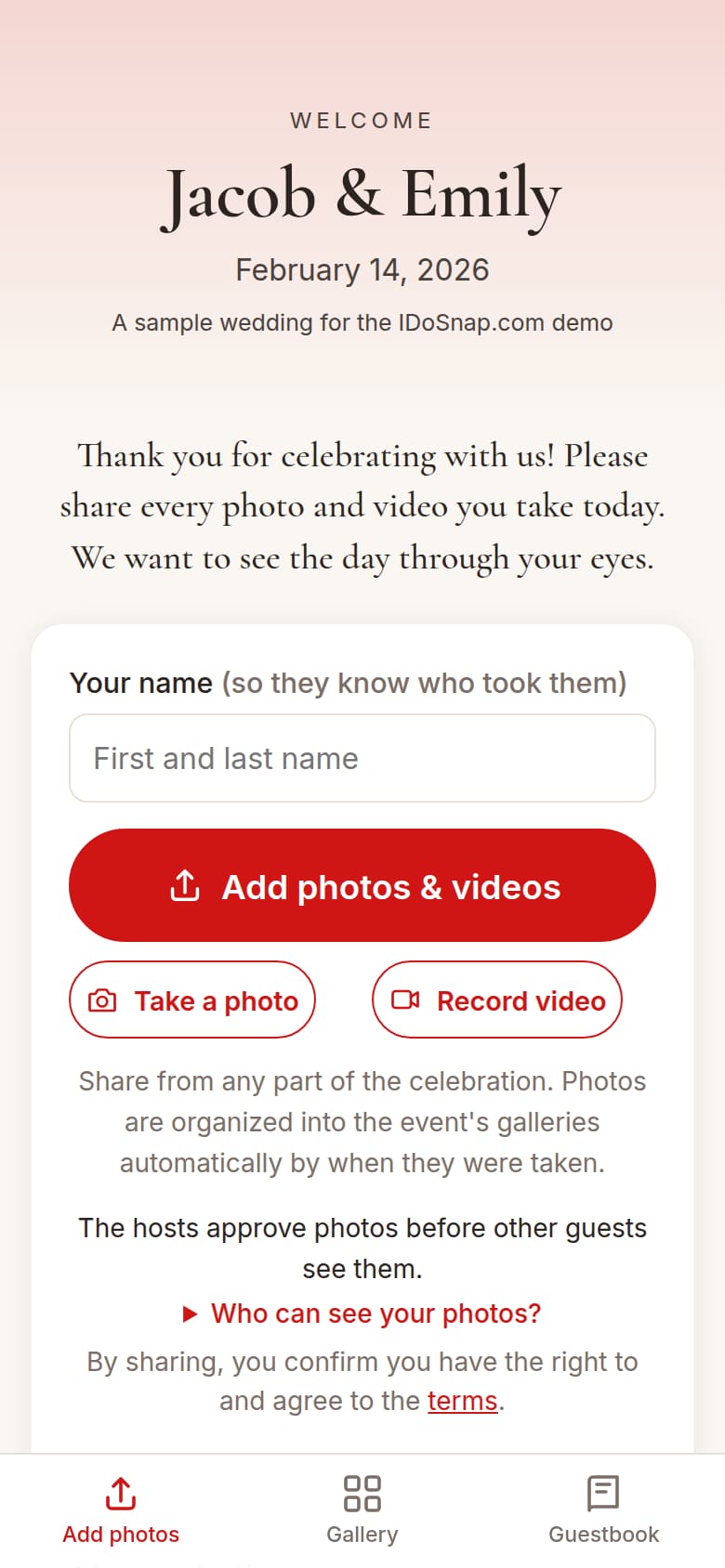
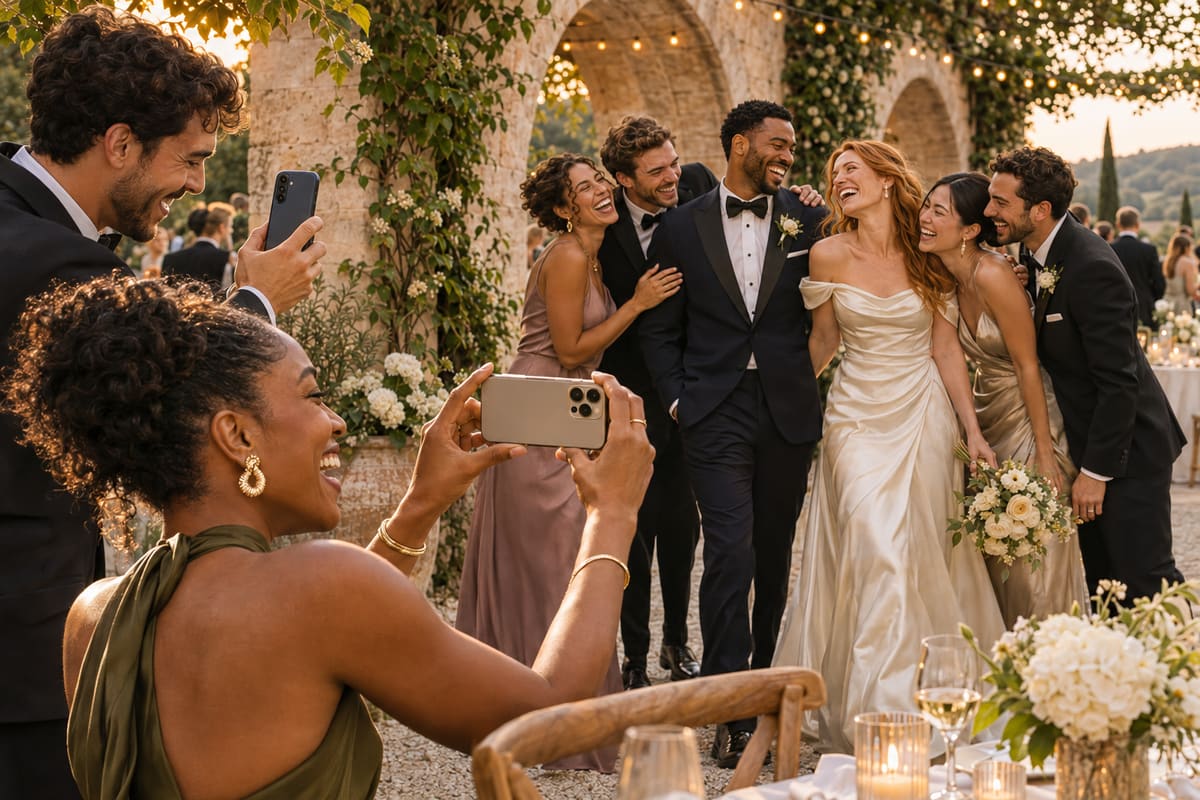
4. Guests scan and share
Guests open their phone camera, point it at the code, and tap the link. They choose photos (and, on paid plans, videos) from their camera roll, or take new ones. Progressive uploads and retries help alleviate poor venue Wi-Fi. On iPhones, Safari may pause uploads in the background, so the page asks guests to keep it open until it says done; reopening it continues the queue.
For guests who find phones fiddly, there's a simple upload mode with one large button.
5. Watch the photos come in
Open the live photo slideshow on the DJ's laptop or a TV and new photos join the show shortly after each successful upload. You can show uploads right away or approve each one first. See setting up a live slideshow.
6. Download every original
Afterward, download every original-quality file, one at a time or as ZIP files, for 6 months on Free and at least 1 year on paid events. Guests who asked get a single email when the album is ready; nobody else is emailed.